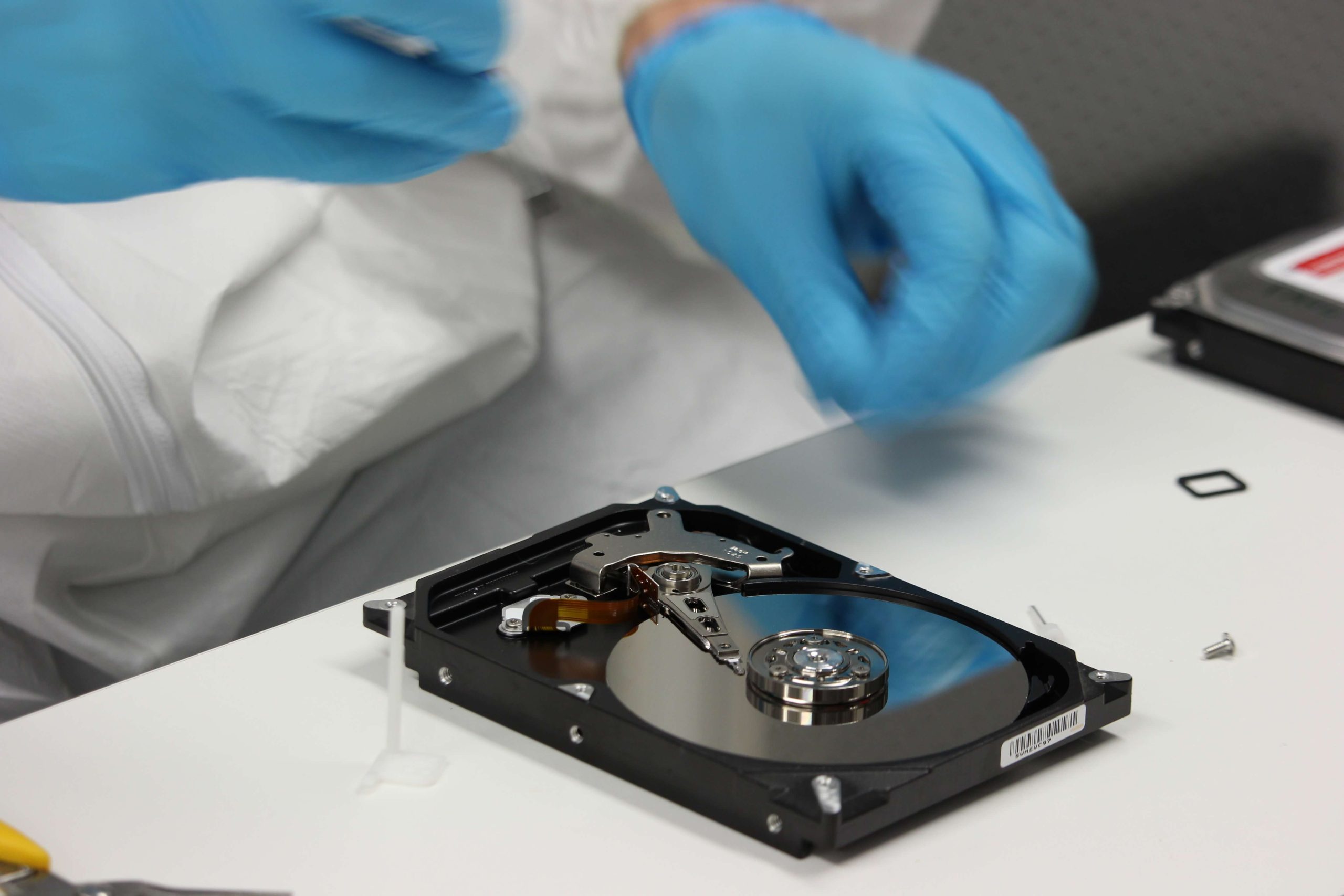

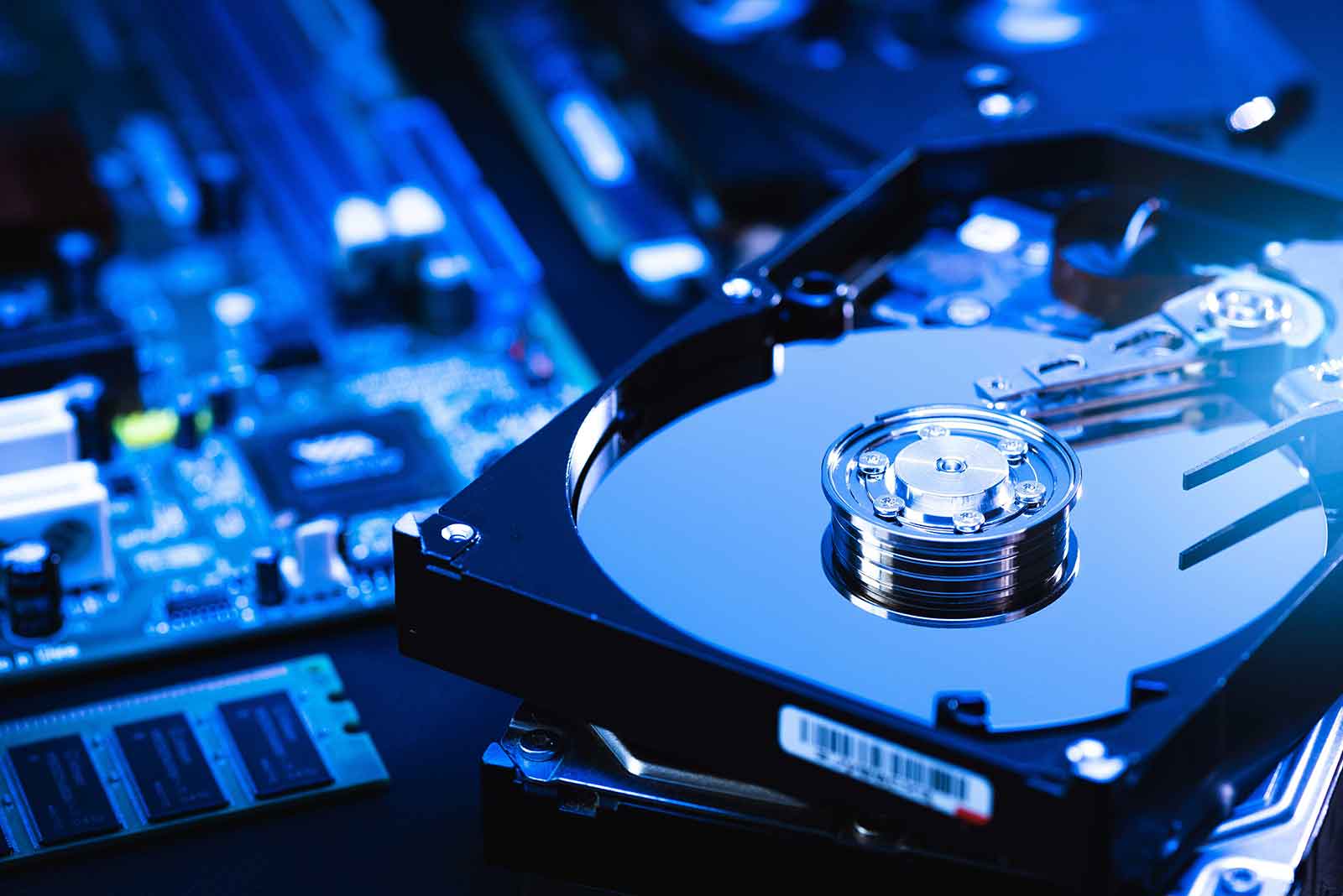
Losing data from a broken hard drive can be a stressful experience, but in many cases, recovery is still possible. If your hard drive is damaged but the files are still accessible, using data recovery software may be a viable solution. While professional recovery services can be expensive, there are several free programs available that can help recover lost or inaccessible files. These programs typically allow you to recover data without repairing the partition itself—only the files are recovered and copied to a different medium.
Understanding Data Recovery Software for Damaged Hard Drives
The concept of data recovery software is straightforward: if a partition is damaged but its files are still intact, the software will attempt to access and recover those files. It cannot repair the damaged partition, but it can help retrieve files from the broken hard drive and save them to another device, such as an external storage drive or USB flash drive.
While paid programs often come with advanced features and more powerful recovery capabilities, free programs can still achieve significant results. They may not be able to recover every file, but they offer a great starting point, especially if you’re looking to recover basic data.
Step 1: Check If the Operating System Recognizes the Drive
Before diving into recovery software, the first step is to check if your operating system recognizes the damaged hard drive. If your system can detect the drive and show it as a partition (even though you can’t access the files), this indicates that the partition is still somewhat functional. In this case, you can use a free data recovery program to recover the files.
If your operating system does not detect the drive at all, this indicates that the partition is likely damaged or corrupted. In this scenario, partition recovery software may be required to restore the drive before you can recover files.
Step 2: Use Free Data Recovery Software
Several free data recovery programs can help recover lost files from damaged partitions or files that have been accidentally deleted. Here are some of the best free tools to get started:
- Recuva: Recuva is one of the most popular free data recovery tools for Windows. It is user-friendly and capable of recovering files from damaged or formatted drives. Recuva can also restore files that have been emptied from the Recycle Bin, making it a versatile tool for basic file recovery.
- PC Inspector File Recovery: PC Inspector File Recovery is another excellent free option for Windows users. It supports a wide variety of file formats and can recover files from formatted, damaged, or corrupted drives. It also has the ability to recover files from drives with missing partitions.
- PhotoRec: PhotoRec is a powerful open-source data recovery tool that works on both Windows and macOS. While its interface is not as user-friendly as Recuva, it is highly effective at recovering lost files from various storage devices, including damaged hard drives. It’s a great option for recovering a wide range of file types, including documents, videos, and photos.
Step 3: Use Partition Recovery Software
If your hard drive is not being recognized by the operating system and the partition is unavailable, partition recovery software can help restore the drive’s partition structure. Here are a few effective free partition recovery tools:
- TestDisk: TestDisk is a powerful, open-source recovery tool that works on Windows, macOS, and Linux. It is particularly effective for recovering lost partitions and fixing partition tables. TestDisk is a command-line tool, which may be intimidating for some users, but it provides a step-by-step guide for the recovery process. It can be an invaluable tool if the partition is completely lost or inaccessible.
- EaseUS Partition Recovery: EaseUS Partition Recovery is a free Windows tool that helps recover lost or damaged partitions. It offers a simple interface and can recover partitions that have been accidentally deleted or lost due to system crashes or hardware failure.
- MiniTool Partition Recovery: MiniTool Partition Recovery is another useful program for recovering lost partitions. It works well with Windows and offers an intuitive interface, making it easy for users to recover partitions that have become lost or damaged.
Step 4: Save Recovered Data to a Different Drive
After you’ve successfully recovered the files, it’s essential to save them to a different storage device to avoid overwriting any remaining data on the damaged hard drive. Use an external hard drive, a USB flash drive, or any other reliable medium to back up the recovered files. This ensures that you have access to your important data, even if the damaged drive is no longer usable.
Conclusion
Recovering data from a broken hard drive doesn’t have to be an expensive process. Free data recovery software tools like Recuva, PC Inspector File Recovery, PhotoRec, and partition recovery tools such as TestDisk and EaseUS Partition Recovery offer a great starting point for DIY recovery. While they may not recover every file, these tools can help you retrieve crucial data from damaged or corrupted partitions.
If the free software solutions don’t yield the results you need, and the data is irreplaceable, you may need to consider professional data recovery services. However, for many users, free programs are often sufficient to recover important files and avoid costly recovery services. Always remember to back up your data regularly to prevent future data loss.