
If your laptop has stopped working and you’re unable to access your important files, don’t worry. It’s still possible to recover data from a dead laptop, and in this guide, we will walk you through how to do it.
Signs of a Dead Laptop
Before diving into the recovery process, it’s important to confirm that your laptop is indeed “dead.” Here are some common symptoms:
-
Laptop/PC Won’t Boot: If your laptop fails to turn on or boot up, it’s a clear sign of a potential issue.
-
Physical Damage: If your laptop has been dropped or exposed to liquid damage, it might be physically damaged, leading to power failure.
-
Hardware Problems: Issues with the motherboard, processor, or other hardware components can prevent the laptop from functioning.
Data Recovery from a Dead Laptop
While software or hardware failures can cause your laptop to stop working, it’s still often possible to recover the data, depending on the extent of the damage.
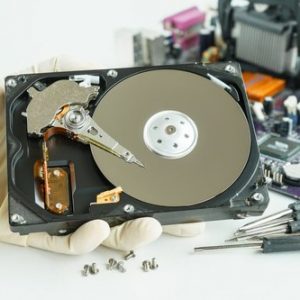
1. Remove the Hard Drive/SSD
If your laptop isn’t turning on, the first thing you should do is remove the hard drive (HDD) or solid-state drive (SSD) from the laptop. This is typically the most straightforward way to access your data when the system won’t boot.
2. Use a Hard Drive Enclosure or Adapter
To transfer the files from the dead laptop, you need to place the hard drive or SSD into an external enclosure or adapter. This allows you to connect the drive to another computer, either a PC or Mac, and access your files.
-
External Enclosure: A hard drive enclosure is a small casing that allows you to insert your laptop’s hard drive or SSD and connect it via USB to another working computer.
-
SATA to USB Adapter: This is a cable that lets you connect the hard drive directly to another computer.
3. Install Data Recovery Software
Once the drive is connected to a working computer, install data recovery software like Remo Recover. This software is designed to perform a deep scan of the drive, checking all sectors for any recoverable data. Here’s how to proceed:
-
Download and Install Remo Recover on your working laptop or desktop.
-
Connect the Dead Laptop’s Hard Drive to the working computer using the hard drive enclosure or adapter.
-
Launch the Remo Recover Software and select the “Recover Partitions” option.
-
The software will scan the drive and show the recoverable files. You can select the files you want to restore and save them to the working computer.
4. When the Hard Drive is Physically Damaged
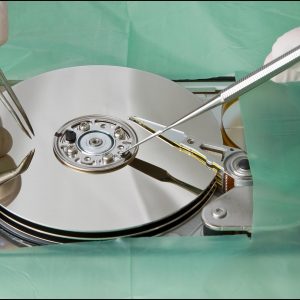
If the hard drive has been physically damaged (e.g., from a fall or liquid spill), recovery software may not be able to help. In such cases, you’ll need to visit a professional data recovery service. These experts use specialized equipment to recover data from physically damaged drives.
Conclusion
In many cases, data recovery from a dead laptop is possible if you follow the proper steps. The first step is to remove the hard drive or SSD, use a hard drive enclosure to connect it to a working computer, and then use data recovery software like Remo Recover. However, if the drive is physically damaged, professional help from a data recovery service may be required.
By following these steps, you can retrieve valuable files from a laptop that won’t boot, ensuring that your important data is not lost forever.
View More : https://saiinternationalcentre.org/technology/how-richmond-data-recovery-can-help-you/