
If you’re facing issues with a damaged SD card and need to recover your data, there are a couple of methods you can try before considering professional recovery services. Both approaches involve using a computer and can be effective depending on the nature of the issue.
Use the “chkdsk” Command (Windows)
One of the first solutions is to use the built-in chkdsk command available on Windows. This method works well for fixing file system errors on SD cards, and it is quite simple to execute.
To begin, insert your SD card into your computer using a suitable SD card reader. Next, open the Command Prompt by typing “cmd” into the Start menu search bar and pressing enter. Once the Command Prompt appears, click on cmd.exe to open it.
In the Command Prompt window, you will need to type one of the following commands (without the quotes):
Or, alternatively:
Be sure to replace [SD Card Letter] with the letter assigned to your SD card (such as “E:”, “F:”, etc.), which you can find in File Explorer under “This PC.”
After you enter the correct command, press enter and allow the chkdsk command to work. It will attempt to repair any file system issues and recover any accessible data from the SD card. Once the process completes, check your SD card in File Explorer to see if your files are accessible again.
Use Data Recovery Software
If the chkdsk method doesn’t resolve the issue, you can try using specialized data recovery software. These programs are designed to scan and recover lost data from damaged or corrupted storage devices like SD cards.
Popular data recovery software options include EaseUS Data Recovery, Disk Drill, Recuva, and Hexascan. These programs are available for download, and after installation, they can help recover files from a damaged SD card.
Once the software is installed, launch it and select your SD card from the list of available drives. Start the scanning process, which will search for lost, deleted, or corrupted files on the SD card. After the scan is complete, you can preview the recoverable files and select the ones you want to restore. It is best to save these recovered files to a different storage device, not the same SD card, to prevent overwriting any remaining data.
Use Professional Data Recovery Services
While DIY methods can be effective for certain issues, there are times when the damage to an SD card may be too severe for recovery software to handle. In such cases, professional data recovery services become essential.
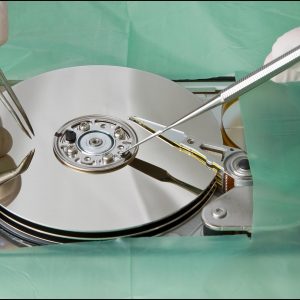
Professional data recovery services are equipped with advanced tools and expertise to deal with both logical and physical damage to storage devices. These services often operate clean rooms, which are specialized environments that help repair damaged drives while preventing further damage from dust or moisture.
At Chronodisk Laboratory, we have over 15 years of experience in data recovery. Our team uses cutting-edge equipment to recover data from all types of storage devices, including SD cards. Whether the SD card has a logical issue or physical damage, our experts can restore your important files with a higher success rate than typical software solutions.
Conclusion
Recovering data from a damaged SD card can be accomplished using the chkdsk command or reliable data recovery software. However, if the card is physically damaged or recovery software can’t access your files, it’s best to consult a professional service. Whether you prefer to handle the recovery yourself or need expert assistance, there are options available to help you retrieve your important data.