
SD cards and flash drives are portable storage devices widely used in various electronics like mobile phones, cameras, and video game consoles. While convenient, these devices are prone to damage, particularly if not handled carefully. In this article, we’ll explore several methods to repair a damaged SD card or recover data from a flash drive, including both native Windows tools and third-party programs.
Common Causes of SD Card and Flash Drive Damage
Before diving into the recovery methods, it’s important to understand the most common issues that can damage SD cards and flash drives:
-
Improper Ejection: Removing an SD card or flash drive while files are still being transferred can corrupt the data or even damage the storage device.
-
Virus Infection: Malware and viruses can corrupt the data stored on the drive, making it unreadable.
-
Physical Damage: Bending the card, exposure to heat, moisture, or rough handling can cause physical damage to the components inside.
-
Canceled Data Transfers: Interrupting or canceling a data transfer can leave the files in an incomplete or corrupted state.
If you’ve encountered any of these issues, follow the steps below to attempt a repair or data recovery.
Steps to Repair a Damaged SD Card
1. Use Windows Tools to Repair the SD Card
Windows offers built-in tools to check and fix errors on SD cards and other storage devices. Here’s how to use these tools:
a. Check the SD Card for Errors:
-
Insert the SD card into your computer’s card reader or USB port.
-
Open File Explorer, right-click on the SD card, and select Properties.
-
Under the Tools tab, click on Check under the Error Checking section.
-
Windows will scan the card for any errors and offer to fix them automatically.
b. Use the Command Prompt to Repair the Card:
If the above method doesn’t work, you can use the CHKDSK tool:
-
Open Command Prompt as an administrator by typing “cmd” in the Windows search bar, right-clicking on Command Prompt, and selecting Run as administrator.
-
In the Command Prompt window, type the following command (replace
Xwith the letter of your SD card drive): -
Press Enter and allow Windows to check for and repair any errors.
2. Use Third-Party Programs for Advanced Repair
If the built-in Windows tools don’t resolve the issue, third-party software can help repair or recover files from damaged SD cards and flash drives. Some popular programs include:
-
Remo Recover: This tool is designed to recover data from damaged, corrupted, or inaccessible SD cards and flash drives. It offers a deep scan engine that checks all sectors of the drive for lost files.
-
EaseUS Data Recovery Wizard: Another reliable tool that can recover lost or corrupted data from SD cards, flash drives, and other storage devices.
To use these programs:
-
Download and install the recovery software on your computer.
-
Insert the damaged SD card or flash drive into the computer.
-
Run the software and select the device to scan for recoverable files.
-
Follow the on-screen instructions to recover your data.
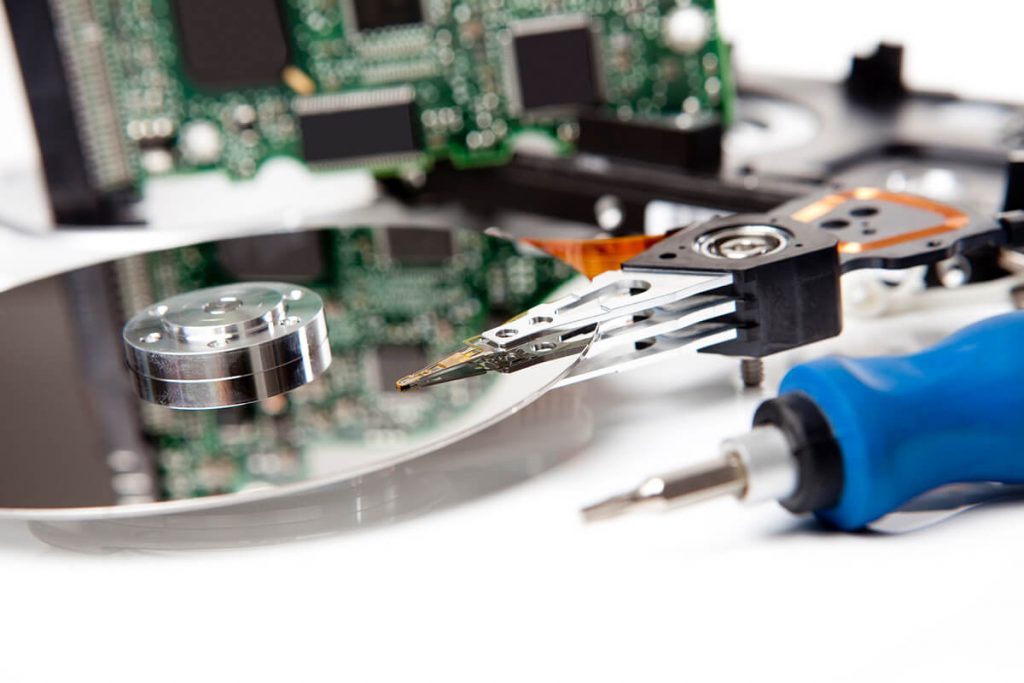
3. Physical Repair (if needed)
If your SD card or flash drive has sustained physical damage, it may require professional repair. In cases of physical damage such as water exposure or broken connectors, it’s best to consult a Data Recovery Service.
-
Data Recovery Lab: If you are unable to recover the data yourself, contact a professional data recovery service. They have the tools and expertise to recover data from damaged devices in cleanroom environments.
Preventive Measures for SD Card and Flash Drive Longevity
To minimize the risk of future data loss and damage, follow these best practices:
-
Eject the SD Card Properly: Always eject the SD card from the device before removing it. Avoid removing it while files are still transferring.
-
Avoid Physical Damage: Store your SD cards and flash drives in a protective case, and avoid bending or exposing them to extreme temperatures or moisture.
-
Use Antivirus Software: Regularly scan your SD cards and flash drives for viruses or malware to prevent file corruption.
Conclusion
While SD card and flash drive damage can be frustrating, many times, you can repair or recover the data using Windows tools or third-party software. However, if the device has sustained physical damage, it’s best to consult a professional data recovery service. Remember to regularly back up your data to avoid data loss in the future.